 PostFactory Blog
How to Organize 10 Clips Before You Schedule Them: A File-Naming Example
Give every clip a stable ID and put its version in the file name. Keep source files, work in progress and approved exports in separate folders.
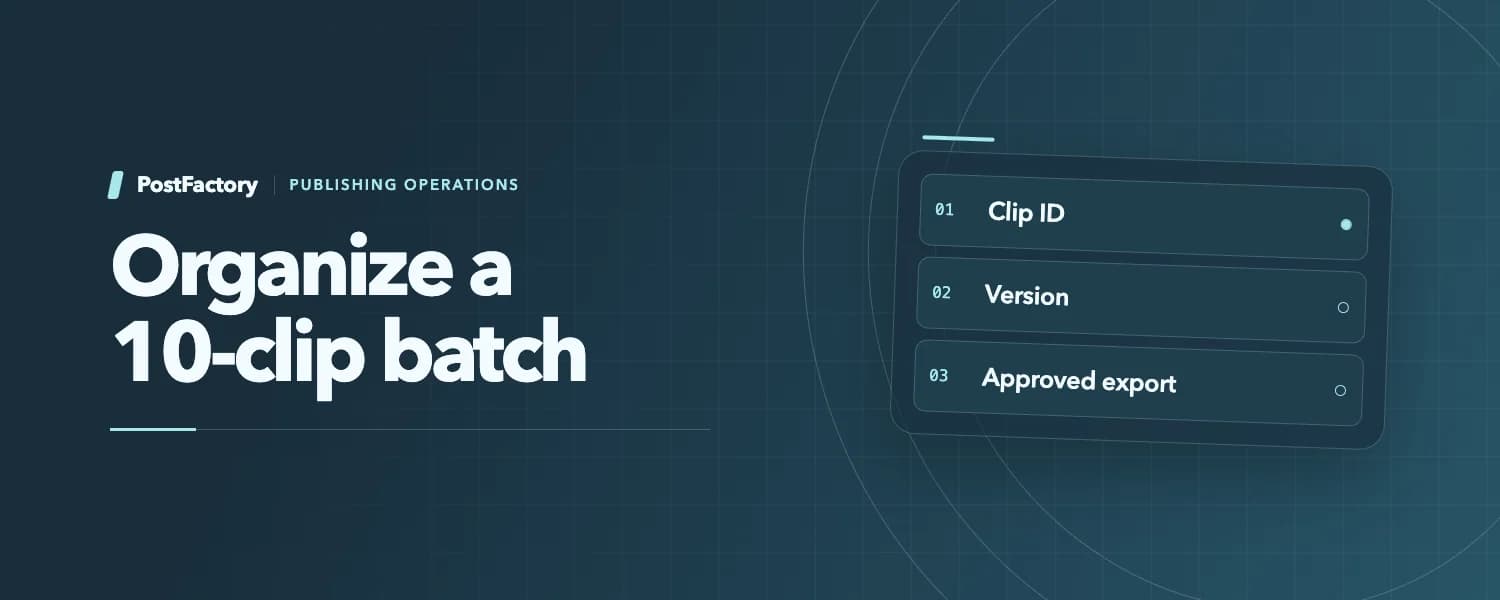
Give every clip a stable ID and put its version in the file name. Keep source files, work in progress and approved exports in separate folders. The person scheduling should be able to find the right file without guessing which “final” is current.
Name the batch before anyone edits
For ten clips, assign C01 through C10 in the planner. Use a pattern such as show09-c03-tiktok-v02.mp4. The project name tells you where it came from, the clip ID connects it to the row, and the destination and version identify the file.
Move the approved export to one place
Keep original recordings in a source folder and editable projects in a working folder. Put the approved export in an approved folder after review. Keep previous exports available in history. If version two was approved but version three is still under review, only version two belongs in the publishing queue.
Find Clip 3 in under a minute
Open the planner and find C03. The row should show the approved filename, the intended account and the time. Follow its file link and play the export. Repeat the check for C01 and C10 before handing off the batch. This also catches broken links and empty rows before someone starts scheduling. The editor-to-publisher handoff checklist covers the rest of the package.
Run three files through the folder structure
For a 10-clip example, the editor exports C01 v01, C03 v02 and C10 v01. The reviewer approves C01 and C10 and asks for a caption fix on C03. Move the two approved files into the handoff folder. Leave C03 in review with a note naming the requested change. The publisher sees two schedulable files and one hold. Keep the clip IDs the same when an editor provides a new version.
Add file, version, owner, platform and last decision to your sheet. Put a stable link on each row. Give a teammate the sheet and ask them to locate the approved C10 export and tell you which account it is for. Fix the file path or naming if they have to ask you where it went.
When there are two files labeled final
Match each file to the explicit approval record. Move superseded versions to a history folder and switch the active row to the exact version that was approved. If the calendar already contains one of the old files, verify the scheduled job separately. The folder move alone leaves the selected file in a publishing tool unchanged. Keep the approved file and account on each row of the multi-account content calendar.