 PostFactory Blog
How to Set Up an Android Phone for Scheduled Social Posts
How to Set Up an Android Phone for Scheduled Social Posts. See the steps and work through an example.
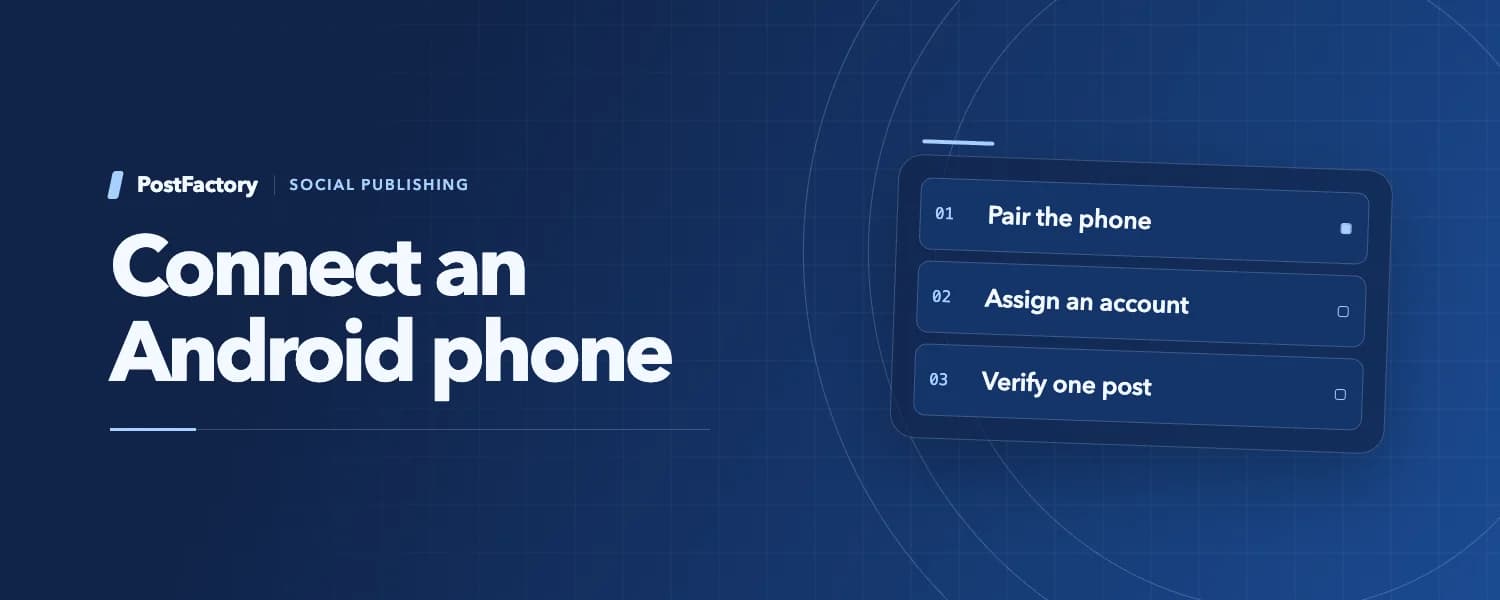
To publish from an Android phone in PostFactory, connect the phone to your workspace, assign the social account you plan to use and keep the device powered on and connected. Run one scheduled test post before filling a calendar.
Pair the phone
Start in the device setup area in your workspace. Follow the Android setup steps and pair that device with the workspace. Give the phone a name you can recognize in a schedule, such as “studio-phone-a.” Keep it charged and connected to the internet where it will run. If using a managed rental, follow the available rental setup path for the account instead.
Check the account matches in both places
Add or select the eligible social account and confirm it is assigned to the intended phone. On a device you control, open the native social app and confirm the target profile is signed in. The workspace account, assigned phone and app session need to match.
Schedule and verify one clip
For the first test, choose one approved video, one account and a time you can monitor. Check the preview before saving the schedule. After the job runs, check its status and open the public profile to confirm the video and caption. Save the public URL beside the planned item. If anything differs, pause the next batch and check the account and device assignment first.
Run the first post as a monitored test
For an illustrative setup, pair a spare Android phone and name it Studio Phone 1. Assign the account the team uses for Studio A. On an owned phone, open the app and compare the signed-in handle with the workspace selection. Prepare one approved clip with a caption your teammate can identify. Schedule it for 14:00 on a day someone can monitor, and give the row an owner.
At the scheduled time, check the job and then the public profile. Keep the exact public URL and the time you confirmed it. If the clip goes live under the correct account and matches the approved version, set up the rest of that account's schedule. If you change devices, verify the new assignment with another test. PostFactory publishing documentation
When a phone pairs but the post still fails
A successful pairing tells you the workspace recognizes the device. Check internet access and the app session before scheduling again. If another profile is open, change to the authorized account and test the mapping. If the target platform or post type is unavailable, check the current device and publishing capabilities. Before retrying an ambiguous job, check the public profile for the original clip so you have one result to track.
Sources
Checked Nov 16, 2026.